The manual. Written for your first day in 3D.Le mode d'emploi. Écrit pour votre premier jour en 3D.
Every tool, every slider, every button of Oryx CAD V1.3: explained so that someone who has never opened Blender can follow. Words in green are the exact labels you will see on screen.
Chaque outil, chaque glissière, chaque bouton d'Oryx CAD V1.3 : expliqué pour qu'une personne qui n'a jamais ouvert Blender puisse suivre. Les mots en vert sont les libellés exacts affichés à l'écran.
Install & first launchInstallation & premier lancement
- Buy Oryx CAD and download
ORYX_CAD_V1.3.zip. Do not unzip it.Achetez Oryx CAD et téléchargezORYX_CAD_V1.3.zip. Ne le décompressez pas. - In Blender:
Edit › Preferences › Add-ons › Install…, pick the zip, then tick the box next to Oryx CAD V1.3.Dans Blender :Édition › Préférences › Add-ons › Installer…, choisissez le zip, puis cochez la case à côté de Oryx CAD V1.3. - In the 3D view, press N, click the ORYX tab on the right edge. Done.Dans la vue 3D, appuyez sur N, cliquez l'onglet ORYX sur le bord droit. C'est tout.
- Top of the panel:
FR / ENswitches the plugin language, and the unit menu (mm, cm, in) controls every displayed value. A 3-step guided tour starts on first launch.En haut du panneau :FR / ENchange la langue du plugin, et le menu d'unité (mm, cm, in) pilote toutes les valeurs affichées. Un tour guidé en 3 étapes démarre à la première ouverture.
The panel that reads your selectionLe panneau qui lit votre sélection Nouveau V1.2
You never hunt for the right tool: the ORYX panel changes with what you have selected (left-click selects; hold Shift to select several). Vous ne cherchez jamais le bon outil : le panneau ORYX change selon ce que vous avez sélectionné (clic gauche pour sélectionner ; maintenez Maj pour en sélectionner plusieurs).
| Your selectionVotre sélection | The panel showsLe panneau affiche |
|---|---|
| NothingRien | The launcher: create a Gear, Screw, Spring, Clip, or import a file.Le lanceur : créer un Engrenage, une Vis, un Ressort, un Clip, ou importer un fichier. |
| 1 part1 pièce | Its spec sheet (dimensions, health) + suggested actions: edit, position, glue, set to dimension, repair.Sa fiche technique (dimensions, santé) + actions suggérées : modifier, positionner, coller, mettre à la cote, réparer. |
| 2 parts2 pièces | Assembly mode: merge cleanly, drill one with the other.Le mode assemblage : fusionner proprement, percer l'une avec l'autre. |
| 2+ parts2 pièces ou + | Big buttons appear: Align in Z, Origin → Geometry, Origin → Base, plus the Measures and Export cards.De grands boutons apparaissent : Aligner en Z, Origine → Géométrie, Origine → Base, plus les cartes Mesures et Exporter. |
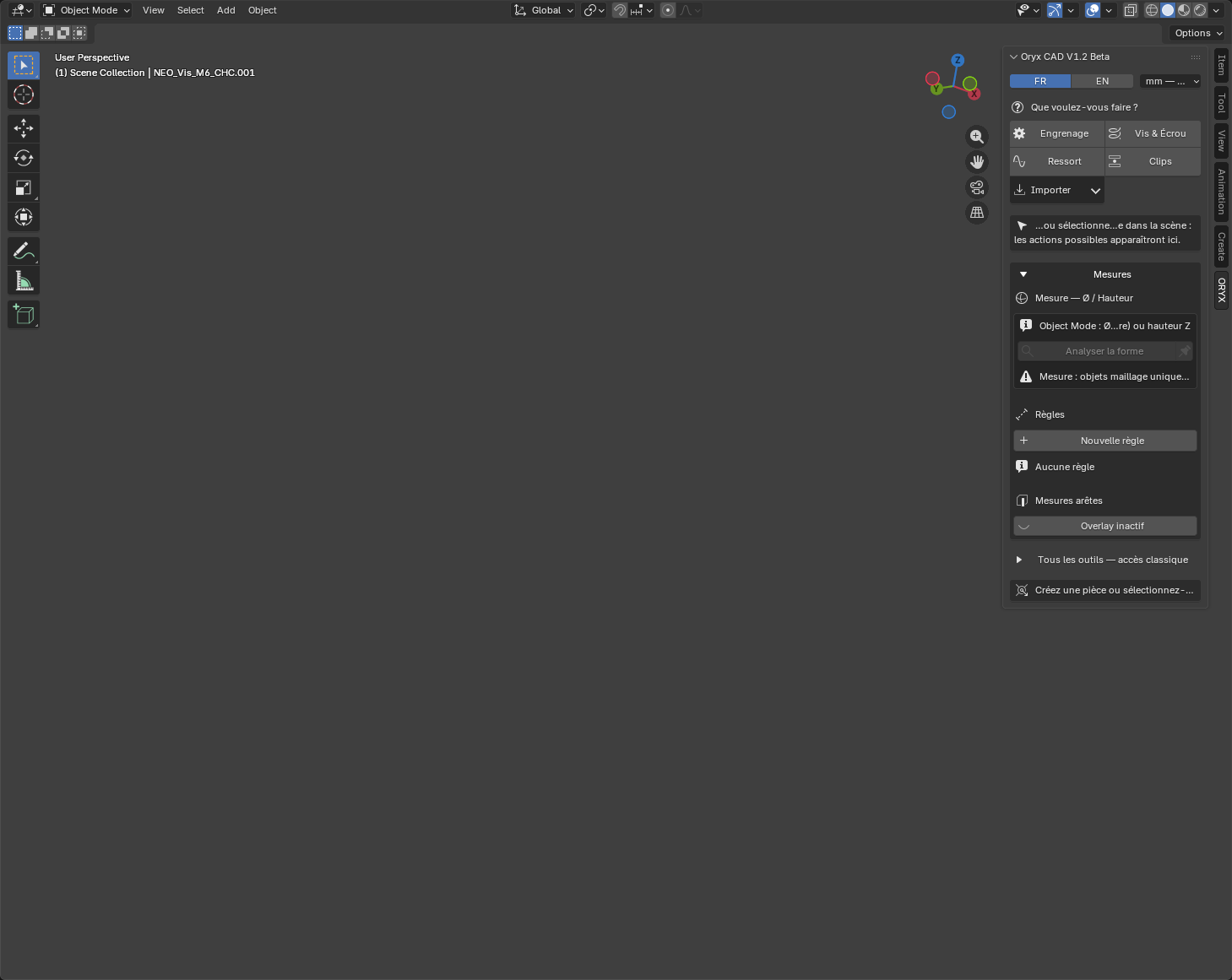
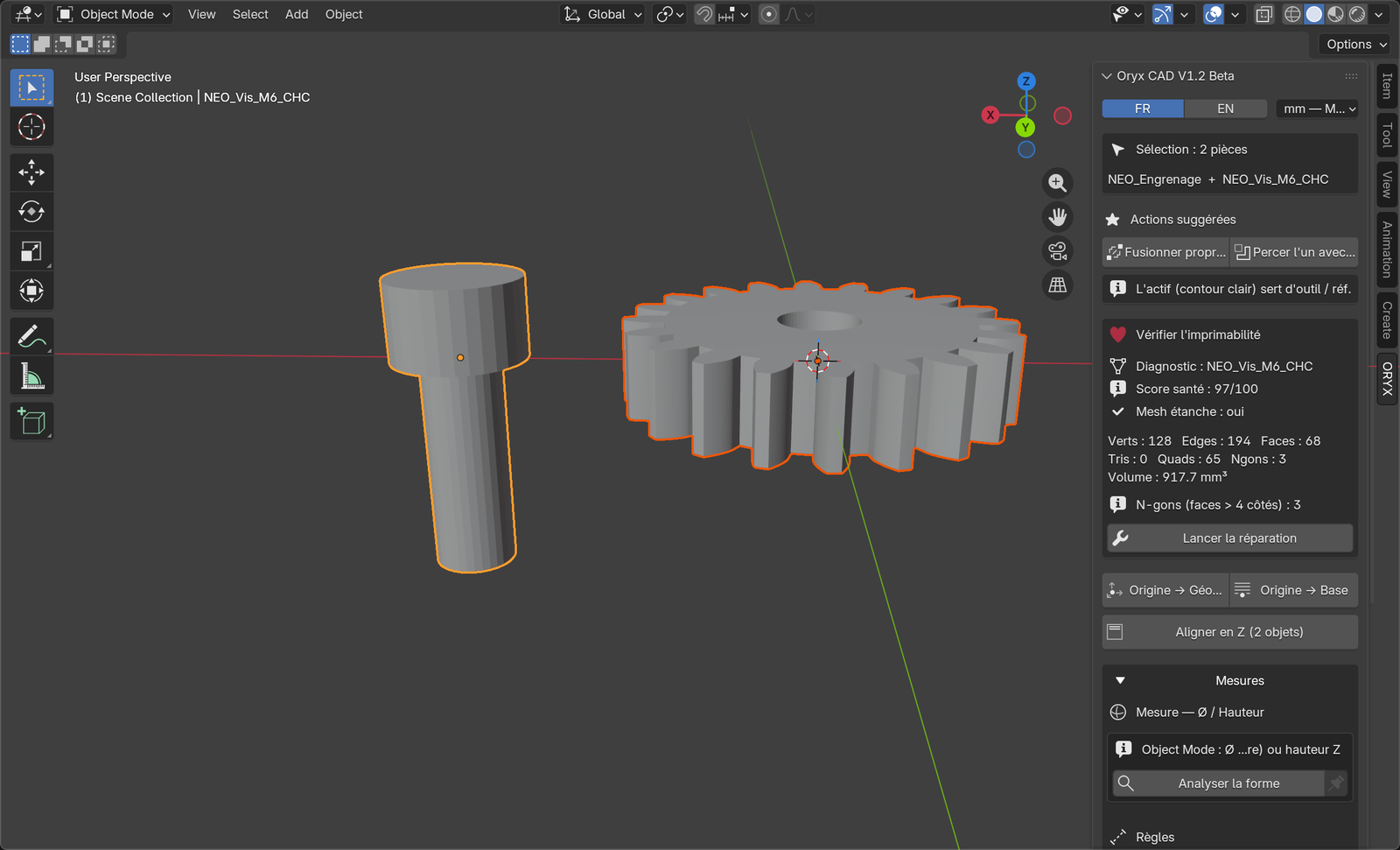
Two panels can dock above the main one: Customization (sliders when creating or editing a part) and the Assistant (guided workflows). They open on their own exactly when needed, and the old classic access is still there at the bottom, under All tools.
Deux panneaux peuvent s'ancrer au-dessus du principal : Personnalisation (les glissières quand vous créez ou modifiez une pièce) et l'Assistant (les flux guidés). Ils s'ouvrent seuls, exactement quand il faut, et l'accès classique reste en bas, sous Tous les outils.
Create: GearsCréer : Engrenages
Real involute gears (the tooth shape used in actual machines) that mesh together and print without supports.De vrais engrenages « involute » (le profil de dent des vraies machines) qui s'engrènent entre eux et s'impriment sans supports.
- Nothing selected → click
Gearin the launcher. The Customization panel opens.Rien de sélectionné → cliquezEngrenagedans le lanceur. Le panneau Personnalisation s'ouvre. - Drag the sliders: the computed values (module, pitch diameter) update live below.Réglez les glissières : les valeurs calculées (module, Ø primitif) se mettent à jour en direct dessous.
- Click
Create the part. The panel closes; your gear is placed and selected.CliquezCréer la pièce. Le panneau se ferme ; votre engrenage est posé et sélectionné.
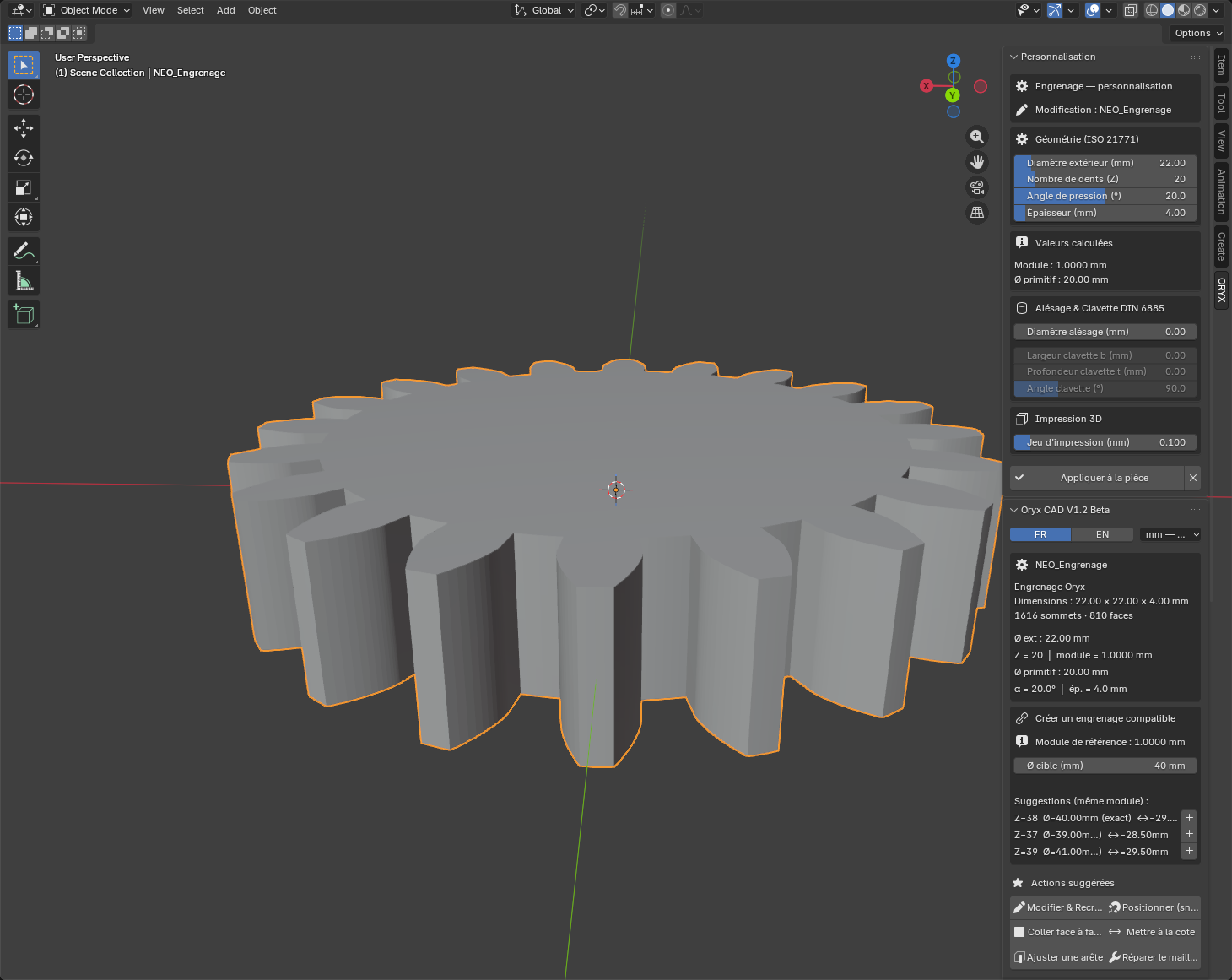
Every parameterTous les paramètres
| SliderGlissière | What it doesCe que ça fait |
|---|---|
| Outer diameter (mm)Diamètre extérieur (mm) | Total size of the gear. With the tooth count, it sets the module (tooth size) automatically.Taille hors-tout de l'engrenage. Avec le nombre de dents, il fixe automatiquement le module (la taille de dent). |
| Teeth (Z)Nombre de dents (Z) | How many teeth. More teeth = finer teeth at the same diameter.Le nombre de dents. Plus de dents = dents plus fines à diamètre égal. |
| Pressure angle (°)Angle de pression (°) | Leave 20° (ISO standard) unless you know why: 25° = stronger, 14.5° = vintage.Laissez 20° (standard ISO) sauf besoin précis : 25° = plus costaud, 14,5° = ancien standard. |
| Thickness (mm)Épaisseur (mm) | Height of the gear along its axis.Hauteur de l'engrenage le long de son axe. |
| Bore Ø (mm)Diamètre alésage (mm) | Central hole for a shaft. 0 = solid gear.Trou central pour un arbre. 0 = engrenage plein. |
| Keyway b / t / angleClavette b / t / angle | Optional DIN 6885 key slot in the bore so the gear can't spin free on its shaft.Rainure de clavette DIN 6885 optionnelle dans l'alésage, pour que l'engrenage n'échappe pas à son arbre. |
| Print clearance (mm)Jeu d'impression (mm) | Tiny offset so printed gears actually turn. 0.1 mm default works on most FDM printers.Petit décalage pour que les engrenages imprimés tournent vraiment. 0,1 mm par défaut convient à la plupart des FDM. |
| TypeType V1.3 | Spur (straight teeth), Herringbone (V-shaped, two opposed helices) or Helical (single slanted helix).Droit (dents droites), Chevrons (dents en V, deux hélices opposées) ou Hélicoïdal (une seule hélice inclinée). |
| Helix angle β (°)Angle d'hélice β (°) V1.3 | 0 to 45°, 25° by default. The tooth flank sits at 90° − β from horizontal: past 45° the teeth need print supports, and the panel says so.De 0 à 45°, 25° par défaut. Le flanc de dent fait 90° − β avec l'horizontale : au-delà de 45°, la denture demande des supports, et le panneau le dit. |
| Helix handSens de l'hélice V1.3 | Right or left. Two meshing wheels must have opposite hands: the mating-gear button handles it for you.À droite ou à gauche. Deux roues qui engrènent doivent être de sens opposés : le bouton de roue conjuguée s'en charge. |
| Tooth backlash (mm)Jeu d'entredent (mm) V1.3 | 0 to 2.00 mm, 0.15 mm by default. Thins the tooth so a printed pair turns without binding; each wheel takes half the play. Outer diameter and centre distance do not move. 0 = flanks touching.De 0 à 2,00 mm, 0,15 mm par défaut. Amincit la dent pour que le couple imprimé tourne sans coincer ; chaque roue prend la moitié du jeu. Le Ø extérieur et l'entraxe ne bougent pas. 0 = flancs jointifs. |
Create mating gear: the second wheel arrives with the helix reversed, at the exact centre distance, offset by half a pitch so the teeth already engage. It inherits everything else: module, pressure angle, thickness, backlash.
Sélectionnez un engrenage chevrons ou hélicoïdal et cliquez Créer la roue conjuguée : la seconde roue arrive sens d'hélice inversé, à l'entraxe exact, calée d'un demi-pas pour que les dents engrènent déjà. Elle hérite de tout le reste : module, angle de pression, épaisseur, jeu.
Create a compatible gear. Type a target diameter, pick a suggestion (same module = teeth that mesh), click +. It also computes the exact centre distance for you. And if the gear has a keyway, Create the shaft builds the matching shaft.
Sélectionnez un engrenage : sa fiche propose Créer un engrenage compatible. Tapez un diamètre cible, choisissez une suggestion (même module = dents qui s'engrènent), cliquez +. L'entraxe exact est calculé pour vous. Et si l'engrenage a une clavette, Créer l'arbre construit l'arbre assorti.
Create: Screws & nutsCréer : Vis & écrous
Real ISO metric hardware, M2 to M16: the same sizes as the screws in your drawer.De la vraie visserie métrique ISO, M2 à M16 : les mêmes tailles que les vis de votre tiroir.
- Launcher →
Screw & Nut. Pick anISO preset(e.g. M6): all dimensions fill themselves.Lanceur →Vis & Écrou. Choisissez unPreset ISO(ex. M6) : toutes les cotes se remplissent seules. - Pick the head type (hex, cap CHC, countersunk…), the length, the thread style.Choisissez le type de tête (hexagonale, CHC, fraisée…), la longueur, le style de filetage.
- Click
Create the part.CliquezCréer la pièce.
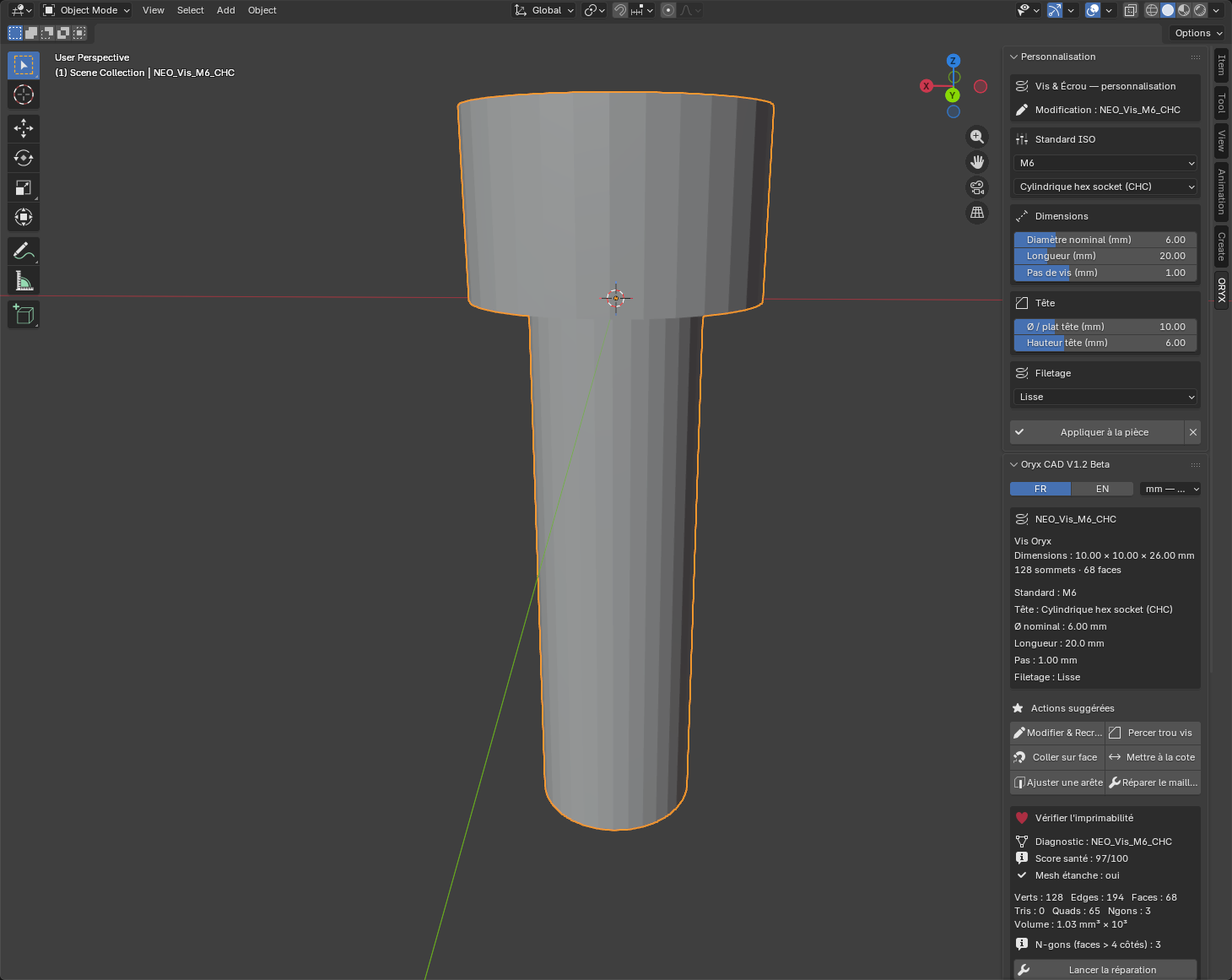
| ParameterParamètre | What it doesCe que ça fait |
|---|---|
| ISO presetPreset ISO | M2 → M16. Sets diameter, pitch, head size. Custom frees every field.M2 → M16. Règle diamètre, pas, tête. Personnalisé libère tous les champs. |
| Head typeType de tête | 5 families: hex, socket cap (CHC), countersunk, button, nut.5 familles : hexagonale, cylindrique (CHC), fraisée, bombée, écrou. |
| Length (mm)Longueur (mm) | Threaded body length, head not included.Longueur du corps fileté, tête non comprise. |
| ThreadFiletage | Smooth (light, prints as a pin) or Real helical: a true printable thread. It costs ~10,000 faces; the panel tells you before you commit.Lisse (léger, s'imprime comme un axe) ou Hélicoïdal réel : un vrai filet imprimable. Ça coûte ≈ 10 000 faces ; le panneau vous prévient avant de valider. |
| Thread handSens du filetage V1.3 | Right-handed by default, the convention of every screw in your drawer. Up to V1.2 the helix ran left-handed; screws made then can be rebuilt to put them the right way round.À droite par défaut, la convention de toutes les vis de votre tiroir. Jusqu'en V1.2, l'hélice tournait à gauche ; les vis créées à l'époque se recréent pour les remettre dans le bon sens. |
NutsLes écrous V1.3
The launcher builds nuts as well as screws, in two flavours. Both follow ISO 4032 across the whole M2 → M16 range. Le lanceur fabrique aussi des écrous, en deux variantes. Les deux suivent la norme ISO 4032 sur toute la plage M2 → M16.
| Nut typeType d'écrou | What it is forÀ quoi ça sert |
|---|---|
| Hex (threaded)Hexagonal (fileté) | A real ISO 4032 nut with a printed thread, to screw onto your printed screw.Un vrai écrou ISO 4032 avec son filet imprimé, à visser sur votre vis imprimée. |
| Embedded imprintÀ encastrer (empreinte) | A hexagonal pocket with no thread, to subtract from your own part so a shop-bought steel nut drops in. A 0.2 mm allowance is added across flats and height, because an FDM cavity always comes out slightly tight.Une empreinte hexagonale sans filet, à soustraire de votre pièce pour y loger un écrou du commerce en acier. Un jeu de 0,2 mm est ajouté sur l'entre-plats et la hauteur, parce qu'une cavité FDM sort toujours un peu étroite. |
Drill hole. Pick the target part; the hole gets the right clearance, depth, and optional counterbore so the printed screw threads in.
Sélectionnez une vis : sa fiche propose Percer le trou. Choisissez la pièce cible ; le trou reçoit le bon jeu, la bonne profondeur et un lamage optionnel, pour que la vis imprimée se visse dedans.
Create: Springs & tensionCréer : Ressorts & tension Nouveau V1.2
Two printable spring types, and the V1.2 star feature: a tension slider that compresses the spring in the viewport exactly as it will sit in your real assembly. Deux types de ressorts imprimables, et la fonction star de la V1.2 : une glissière de tension qui comprime le ressort dans la vue exactement comme il sera dans votre assemblage réel.
Zigzag flat spring (recommended for FDM)Ressort plat zigzag (recommandé en FDM)
A flat serpentine printed lying down: the layers are perpendicular to the effort, which makes it the most robust printable spring. In the launcher: Spring → tab Flat zigzag.
Un serpentin plat imprimé à plat : les couches sont perpendiculaires à l'effort, ce qui en fait le ressort imprimable le plus robuste. Dans le lanceur : Ressort → onglet Plat zigzag.
| SliderGlissière | What it doesCe que ça fait |
|---|---|
| Length / Width / ThicknessLongueur / Largeur / Épaisseur | Overall footprint (compression happens along the length).Encombrement global (la compression se fait le long de la longueur). |
| Beam width (mm)Largeur de lame (mm) | Thickness of each leaf: this drives the stiffness.Épaisseur de chaque lame : c'est elle qui pilote la raideur. |
| ZigzagsNombre de zigzags | Number of U-turns. More zigzags = softer spring.Nombre de demi-tours. Plus de zigzags = ressort plus souple. |
Helical compression springRessort de compression hélicoïdal
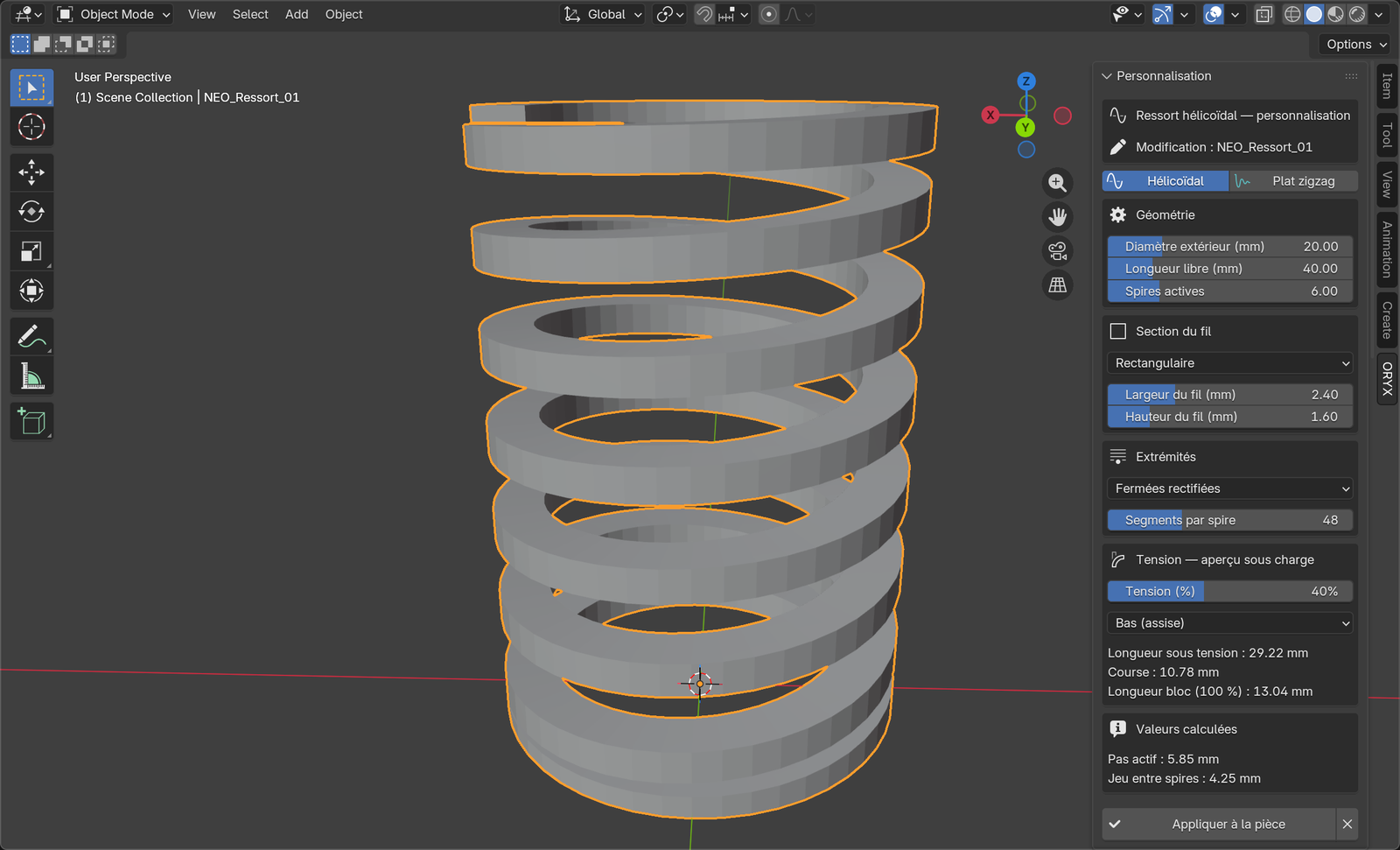
The classic coil. Choose a rectangular wire section (best for printing) or round, and the end style: closed ground gives flat seats so it stands upright on the print bed. Le ressort classique à spires. Choisissez une section de fil rectangulaire (idéale à imprimer) ou ronde, et le style d'extrémités : fermées rectifiées donne des assises plates pour qu'il tienne debout sur le plateau.
| SliderGlissière | What it doesCe que ça fait |
|---|---|
| Outer Ø / Free lengthØ extérieur / Longueur libre | Size of the spring at rest.Taille du ressort au repos. |
| Active coilsSpires actives | Working coils. The panel shows the resulting pitch and coil gap live, with FDM warnings.Spires travaillantes. Le panneau affiche en direct le pas et le jeu entre spires, avec les garde-fous FDM. |
| Wire sectionSection du fil | Rectangular (width × height) or round (Ø).Rectangulaire (largeur × hauteur) ou ronde (Ø). |
| EndsExtrémités | Open / closed / closed-ground (flat seat, recommended).Ouvertes / fermées / fermées rectifiées (assise plate, recommandé). |
The Tension cardLa carte Tension Nouveau V1.2
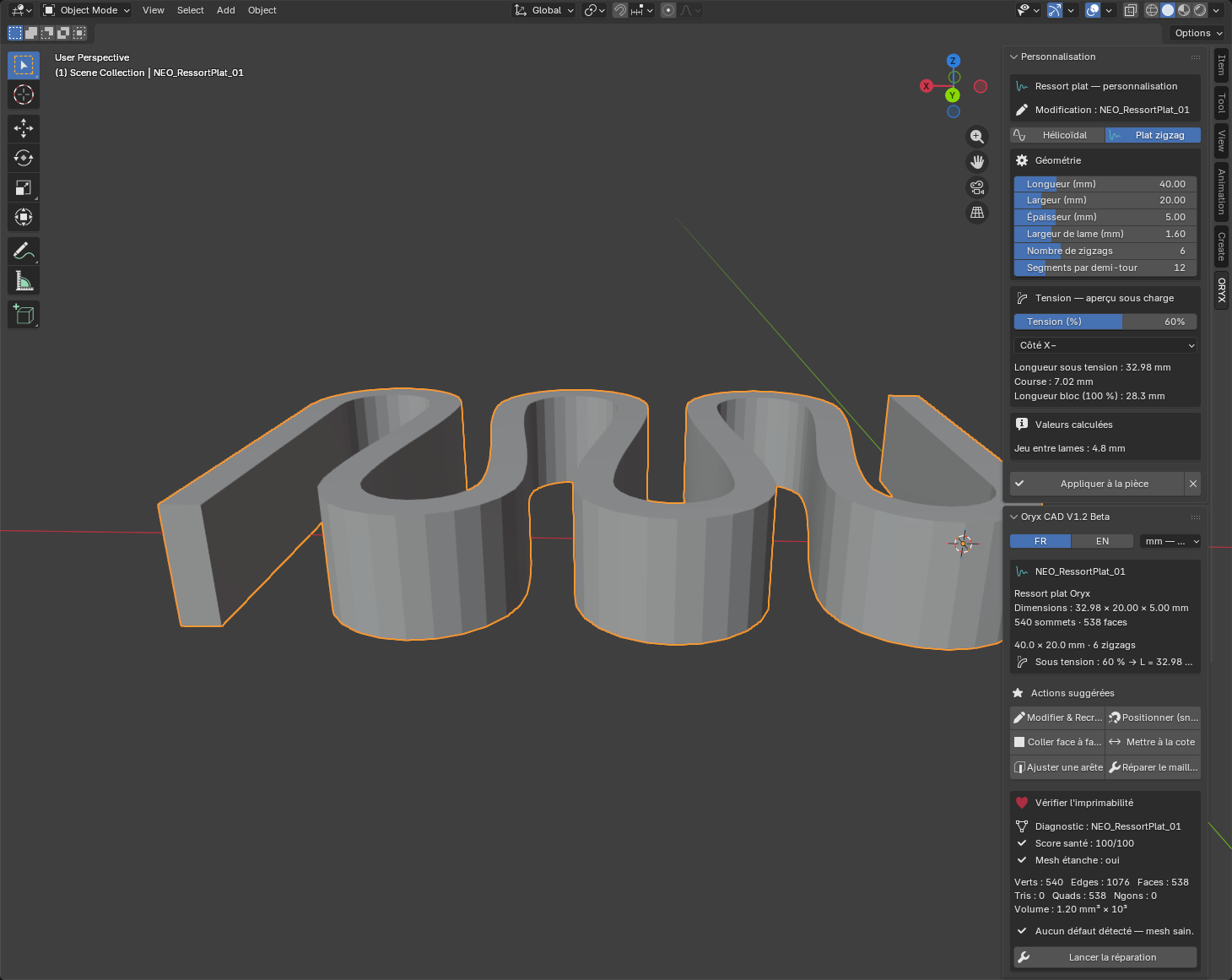
- Select your spring →
Edit & Rebuild. TheTension: under-load previewcard is in the panel.Sélectionnez votre ressort →Modifier & Recréer. La carteTension : aperçu sous chargeest dans le panneau. - Drag
Tension (%): 0% = at rest, 100% = the real physical maximum (coils or leaves touching). The mesh compresses live.GlissezTension (%): 0 % = détendu, 100 % = le maximum physique réel (spires ou lames jointives). Le mesh se comprime en direct. - Pick the
Fixed side: the end that stays put while the other compresses.Choisissez leCôté fixe: l'extrémité qui ne bouge pas pendant que l'autre se comprime. - Slide the spring into your part to check where maximum compression reaches. Set back to 0% before printing.Glissez le ressort dans votre pièce pour vérifier où arrive la compression maximale. Repassez à 0 % avant d'imprimer.
Create: Snap-fit clipsCréer : Clips d'emboîtage Nouveau V1.2
Assemble two printed parts without screws or glue: a split-mushroom rivet clip, its ready-made socket, and one-click carving of the facing part: all with the FDM tolerance handled for you. Assemblez deux pièces imprimées sans vis ni colle : un clip champignon fendu, son logement prêt à l'emploi, et le creusage en un clic de la pièce d'en face, avec la tolérance FDM gérée pour vous.
1 · Create the clip (male part)1 · Créer le clip (partie mâle)
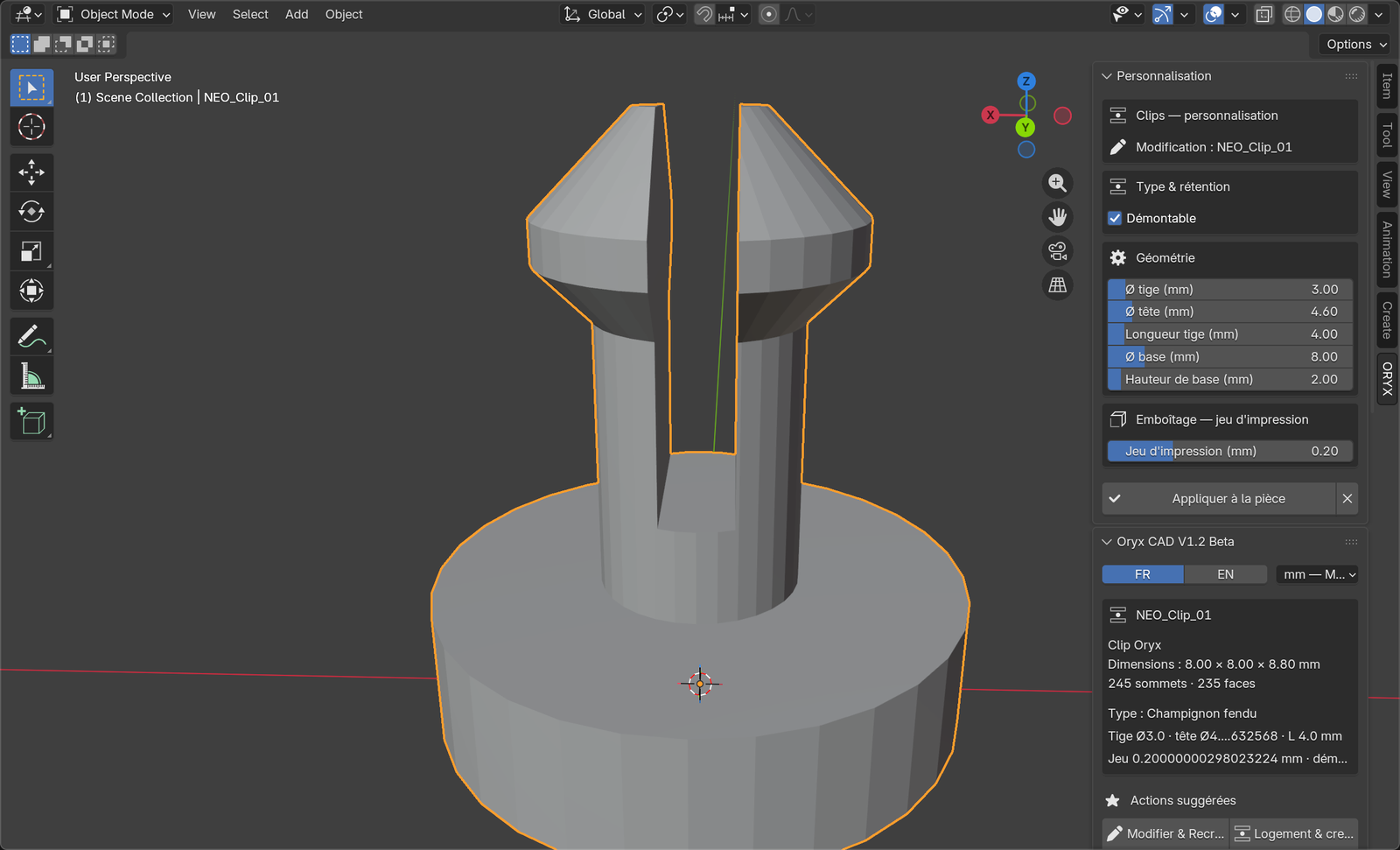
- Launcher →
Clips. Set stem Ø, head Ø, stem length (= the wall thickness it will cross), base size.Lanceur →Clips. Réglez Ø tige, Ø tête, longueur de tige (= l'épaisseur de paroi à traverser), taille de base. Removableticked: a 45° ramp lets you unclip by pulling. Unticked: permanent, it never comes back out.Démontablecoché : une rampe à 45° permet de déclipser en tirant. Décoché : permanent, ça ne ressort plus.Print clearance: 0.2 mm default suits most FDM printers.Jeu d'impression: 0,2 mm par défaut convient à la plupart des FDM.- Create, then move the clip freely where you want it. Merge its base into your part with
Merge cleanly.Créez, puis placez le clip librement où vous voulez. Fusionnez sa base dans votre pièce avecFusionner proprement.
2 · The socket, or carving the facing part2 · Le logement, ou creuser la pièce en face
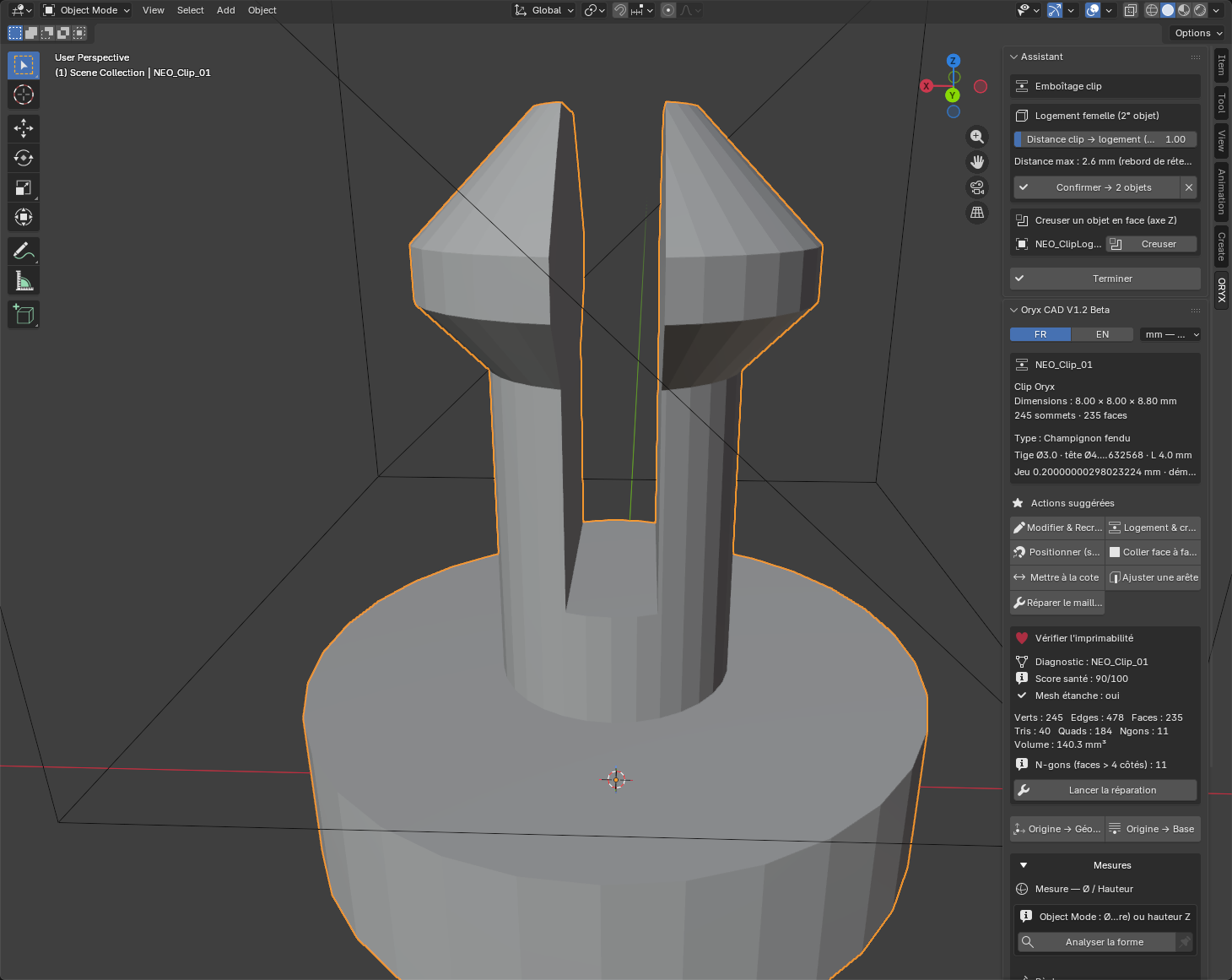
- Select the clip →
Socket & carving. The Assistant opens with two options.Sélectionnez le clip →Logement & creusage. L'Assistant s'ouvre avec deux options. - Option A, the socket:
Create the socketshows a wireframe preview block on the clip's axis. Adjust the distance slider, thenConfirm → 2 objects: you get a printable block with the cavity at the right tolerance, to merge into the receiving part.Option A, le logement :Créer le logementaffiche un bloc d'aperçu filaire sur l'axe du clip. Ajustez la glissière de distance, puisConfirmer → 2 objets: vous obtenez un bloc imprimable avec la cavité à la bonne tolérance, à fusionner dans la pièce réceptrice. - Option B, carve the facing part: the box lists every object found on the clip's axis, near or far. Click
Carvenext to one: its facing surface receives the exact clip imprint + clearance. The part does not move.Option B, creuser la pièce en face : la box liste tous les objets trouvés sur l'axe du clip, proches ou éloignés. CliquezCreuserà côté de l'un d'eux : sa face en regard reçoit l'empreinte exacte du clip + le jeu. La pièce ne bouge pas. - After carving,
Snap onto the clipbrings the part down to its assembled position to check the fit visually, andUndo snapreturns it to the exact spot it came from.Après le creusage,Emboîter sur le clipdescend la pièce en position assemblée pour vérifier visuellement, etAnnuler l'emboîtementla ramène exactement d'où elle vient.
Create: Printable surface textureCréer : Texture imprimable Nouveau V1.3
Real relief, written into the mesh and measured in millimetres. Not a shader, not a normal map: what you see is what the nozzle will write.Du vrai relief, écrit dans le maillage et mesuré en millimètres. Ni un shader, ni une normal map : ce que vous voyez est ce que la buse écrira.
- Select your part. In
Suggested actions, clickApply a texture (BETA). The five-step assistant opens.Sélectionnez votre pièce. DansActions suggérées, cliquezAppliquer une texture (BETA). L'assistant en cinq étapes s'ouvre. - Zone: where the relief goes: the whole part, a selection of faces you pick in Edit mode, or a band between two edge loops.Zone : où poser le relief : toute la pièce, une sélection de faces choisie en mode Édition, ou une bande comprise entre deux boucles d'arêtes.
- Pattern: eleven patterns in two families, Geometric (waves, crossed waves, checker, hatching, studs, grain) and Natural (wood, fine wood, stone, weave…), or your own image, preferably greyscale.Motif : onze motifs en deux familles, Géométriques (ondes, ondes croisées, damier, hachures, picots, grain) et Naturelles (bois, bois fin, pierre, tressé…), ou votre propre image, de préférence en niveaux de gris.
- Flat: size, rotation and offset of the pattern on the surface, with a gizmo on the part and millimetre sliders in the panel.À plat : taille, rotation et décalage du motif sur la surface, avec un gizmo sur la pièce et des curseurs en millimètres dans le panneau.
- Relief: the depth, in millimetres, and the direction. The panel converts the depth into printed layers right there.Relief : la profondeur, en millimètres, et le sens. Le panneau convertit la profondeur en couches imprimées à l'écran.
- Finish: density, smoothing, margins, and the pre-print check. Then apply.Finition : densité, lissage, marges, et le contrôle avant impression. Puis appliquer.
Depth, in printed layersLa profondeur, en couches imprimées
A relief only exists if the nozzle writes it at least twice. The panel does the arithmetic for you and says = N layer(s) under the depth slider; below two layers it turns red: the slicer erases it. At a 0.20 mm layer height, 0.60 mm of relief is three layers: that is the safe floor for a small part.
Un relief n'existe que si la buse l'écrit au moins deux fois. Le panneau fait le calcul pour vous et affiche = N couche(s) sous la profondeur ; en dessous de deux couches il passe au rouge : le trancheur l'efface. À 0,20 mm de hauteur de couche, 0,60 mm de relief font trois couches : c'est le plancher sûr sur une petite pièce.
| SettingRéglage | What it doesCe que ça fait |
|---|---|
| Depth (mm)Profondeur (mm) | Amplitude of the relief. Projection is triplanar, so a hollow bites into the part from both sides: past half the wall thickness, it pierces it.Amplitude du relief. La projection étant triplanaire, un creux entame la pièce des deux côtés : au-delà de la moitié de l'épaisseur, il la perce. |
| DirectionSens | Hollow (matter goes in, the default), Raised (matter comes out) or Centred (half and half).En creux (la matière rentre, par défaut), En relief (la matière sort) ou Centré (moitié-moitié). |
| Drawing densityDensité du dessin | How tight the pattern repeats: repetitions, or tile width in millimetres.À quel point le motif se resserre : le nombre de répétitions, ou la largeur de tuile en millimètres. |
| Geometry finenessFinesse de la géométrie | How many vertices carry that drawing. Do not confuse the two: raising the subdivision to tighten the pattern costs millions of faces and changes nothing on screen.Combien de sommets portent ce dessin. Ne confondez pas les deux : monter la subdivision pour resserrer le motif coûte des millions de faces sans rien changer à l'image. |
Edit any part, at any timeModifier n'importe quelle pièce, à tout moment Nouveau V1.2
Every Oryx part remembers its own recipe. Select a gear, screw, spring or clip, even weeks later, and click Edit & Rebuild: the Customization panel reopens pre-filled with its exact parameters. Change anything, Apply to the part, and the geometry is rebuilt in place (position untouched). The panel stays open in edit mode so you can iterate.
Chaque pièce Oryx retient sa propre recette. Sélectionnez un engrenage, une vis, un ressort ou un clip, même des semaines plus tard, et cliquez Modifier & Recréer : le panneau Personnalisation se rouvre pré-rempli avec ses paramètres exacts. Changez ce que vous voulez, Appliquer à la pièce, et la géométrie est reconstruite sur place (position intacte). Le panneau reste ouvert en modification pour itérer.
Create, the panel closes on purpose: so you never create a duplicate by accident. After Apply (editing), it stays open to try several values in a row.
Après Créer, le panneau se ferme volontairement : pour ne jamais créer un doublon par accident. Après Appliquer (modification), il reste ouvert pour tester plusieurs valeurs d'affilée.
The Assistant: guided workflowsL'Assistant : les flux guidés Nouveau V1.2
Some operations need you to click faces or edges on the model. In V1.2 a dedicated Assistant panel docks at the top and walks you through, step by step, with live feedback: you never dig through tabs mid-operation. Certaines opérations demandent de cliquer des faces ou arêtes sur le modèle. En V1.2, un panneau Assistant s'ancre en haut et vous guide pas à pas, avec un retour en direct, plus jamais d'onglets à fouiller en pleine opération.
Glue face to faceColler face à face
- Select the part to move →
Glue face to face. Blender switches to face-pick mode.Sélectionnez la pièce à déplacer →Coller face à face. Blender passe en mode choix de face. - Click the face that must press against the other part. The Assistant shows “1 face selected ✓”.Cliquez la face qui doit se plaquer contre l'autre pièce. L'Assistant affiche « 1 face sélectionnée ✓ ».
Confirm this face→ the gluing starts at once: hover the target, faces snap flush; left-click confirms.Confirmer cette face→ le collage démarre aussitôt : survolez la cible, les faces se plaquent ; clic gauche pour valider.
Set to dimensionMettre à la cote
- Select the part →
Set to dimension. Click 2 opposite faces (Shift+click for the second).Sélectionnez la pièce →Mettre à la cote. Cliquez 2 faces opposées (Maj+clic pour la 2ᵉ). - The Assistant shows the current distance. Type the target, choose which face moves (A or B).L'Assistant affiche la distance actuelle. Saisissez la cote, choisissez la face qui bouge (A ou B).
- Chain as many dimensions as you like, then
Finish.Enchaînez autant de cotes que voulu, puisTerminer.
Adjust an edgeAjuster une arête
Same idea for a single edge: click it, read its live length, type the exact value, pick which end moves. The edge-length overlay switches on during the workflow and back off after. Même logique pour une seule arête : cliquez-la, lisez sa longueur en direct, tapez la valeur exacte, choisissez le sommet qui bouge. L'affichage des longueurs d'arêtes s'active pendant le flux et s'éteint après.
Align, origin, merge, drillAligner, origine, fusion, perçage
| ButtonBouton | What it doesCe que ça fait |
|---|---|
| Align in Z (n objects)Aligner en Z (n objets) V1.2 | From 2 selected parts (no limit): pick the master that stays put; every other part centres onto its vertical axis, each keeping its own height, or all landing exactly on the master.Dès 2 pièces sélectionnées (sans limite) : choisissez le maître qui ne bouge pas ; toutes les autres se centrent sur son axe vertical, chacune gardant sa hauteur, ou toutes exactement sur le maître. |
| Origin → GeometryOrigine → Géométrie | Puts each part's handle (its origin) back at its centre.Remet la poignée de chaque pièce (son origine) à son centre. |
| Origin → BaseOrigine → Base V1.2 | Puts the origin at the centre of the bottom face: perfect to sit parts on the bed or stack them precisely.Met l'origine au centre de la face inférieure : parfait pour poser les pièces sur le plateau ou les empiler précisément. |
| Merge cleanlyFusionner proprement | A true boolean union: the parts become one watertight mesh, ready to print.Une vraie union booléenne : les pièces deviennent un seul mesh étanche, prêt à imprimer. |
| Drill with the other partPercer l'une avec l'autre | Uses the active part as a cookie-cutter with per-axis tolerance: its shape is subtracted from the other.Utilise la pièce active comme emporte-pièce avec tolérance par axe : sa forme est soustraite de l'autre. |
| Position (smart snap)Positionner (snap) | The part follows your mouse and magnetises to corners, edge midpoints and face centres of the scene.La pièce suit la souris et s'aimante aux coins, milieux d'arêtes et centres de faces de la scène. |
MeasuringMesurer Amélioré V1.2
The Measures card is always there, right above Export, whatever you have selected.La carte Mesures est toujours là, juste au-dessus d'Exporter, quelle que soit la sélection.
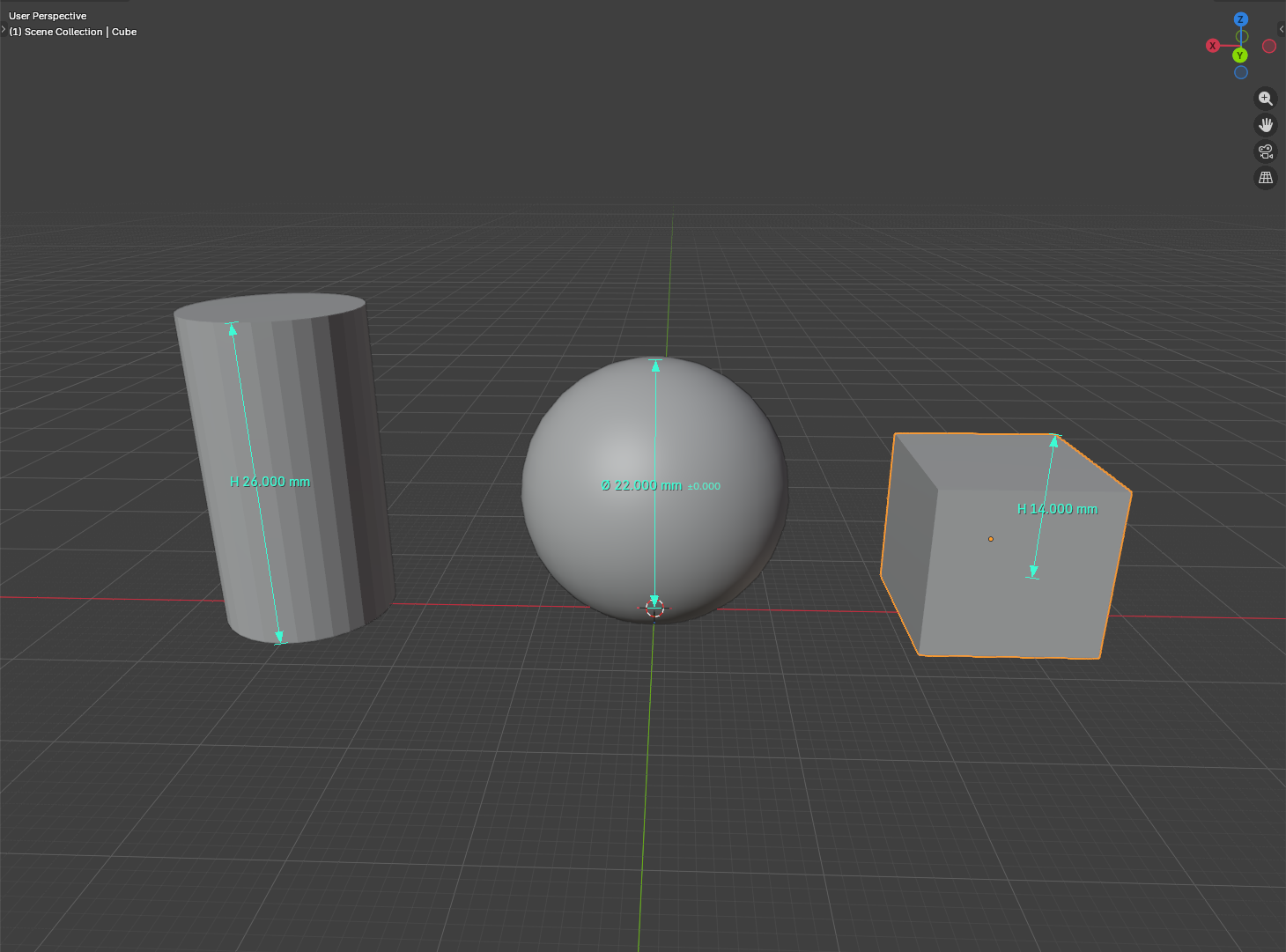
Ø / Height with pinsØ / Hauteur avec épingles
- Select a part →
Analyze the shape. The plugin recognises a cylinder (Ø), a sphere (Ø) or measures the height, and draws a dimension arrow in the view.Sélectionnez une pièce →Analyser la forme. Le plugin reconnaît un cylindre (Ø), une sphère (Ø) ou mesure la hauteur, et dessine une flèche de cote dans la vue. - The measure is ephemeral: deselect the part and it disappears. Click the pin 📌 to keep it: pinned measures live in a list (eye to hide, ✕ to delete) and keep following the part if you scale or edit it.La mesure est éphémère : désélectionnez la pièce et elle disparaît. Cliquez l'épingle 📌 pour la garder : les mesures épinglées vivent dans une liste (œil pour masquer, ✕ pour supprimer) et continuent de suivre la pièce si vous la redimensionnez.
- Need an exact size? Type the target in
Target Ø/heightandApply the dimension: the whole part scales to match.Besoin d'une taille exacte ? Tapez la cible dansØ/hauteur cibleetAppliquer la dimension: toute la pièce est mise à l'échelle.
Rulers & edge lengthsRègles & longueurs d'arêtes
New ruler drops a two-handle tape measure you can snap anywhere; each ruler lists its live length. Edge measurements overlays the length of selected edges in Edit Mode, with the option to set an edge to an exact length.
Nouvelle règle pose un mètre à deux poignées à aimanter n'importe où ; chaque règle affiche sa longueur en direct. Mesures d'arêtes superpose la longueur des arêtes sélectionnées en mode Édition, avec l'option de fixer une arête à une longueur exacte.
Diagnostic & repairDiagnostic & réparation
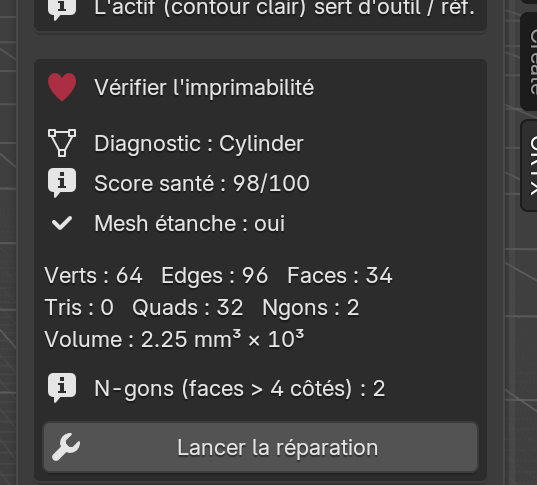
A printable part must be watertight (no holes in the surface). The diagnostic reads: health score /100, watertight yes/no, triangles/quads/n-gons count, and real volume. If something is off, Run the repair fixes the usual suspects: duplicate points, holes, flipped faces. SmartRepair is rule-based, not AI: same input, same result, every time.
Une pièce imprimable doit être étanche (aucun trou dans la surface). Le diagnostic lit : score santé /100, étanchéité oui/non, comptes de triangles/quads/n-gons, et volume réel. Si quelque chose cloche, Lancer la réparation corrige les suspects habituels : points en double, trous, faces retournées. SmartRepair est à base de règles, pas d'IA : même entrée, même résultat, à chaque fois.
Export & printExporter & imprimer
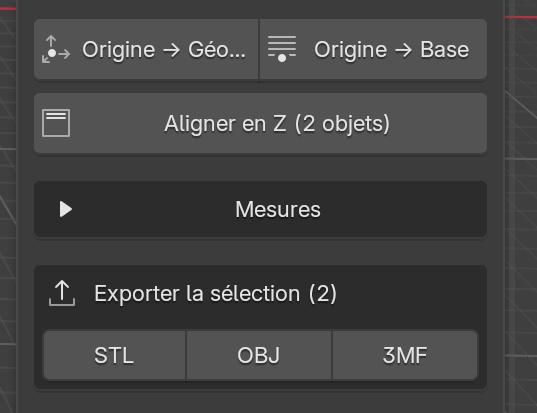
- Select the part(s) to print. The
Export selectioncard counts them.Sélectionnez la ou les pièces à imprimer. La carteExporter la sélectionles compte. - Click
STL,OBJor3MF. Millimetres are locked at 1:1. A 20 mm part prints at 20 mm.CliquezSTL,OBJou3MF. Le millimètre est verrouillé à 1:1. Une pièce de 20 mm s'imprime à 20 mm. - Open the file in your slicer (Cura, PrusaSlicer, Bambu Studio…) and print.Ouvrez le fichier dans votre slicer (Cura, PrusaSlicer, Bambu Studio…) et imprimez.
What's new: V1.2 → V1.3Nouveautés : V1.2 → V1.3
Three capabilities V1.2 simply did not have, and four fixes underneath.Trois capacités que la V1.2 n'avait tout simplement pas, et quatre corrections en dessous.
| V1.3 | In V1.2 you had to…En V1.2 il fallait… |
|---|---|
| Printable surface texture, 11 patterns or your imageTexture imprimable, 11 motifs ou votre image | Sculpt the relief by hand, or give up on it.Sculpter le relief à la main, ou y renoncer. |
| Relief depth typed in millimetres, converted into printed layersProfondeur du relief saisie en mm, convertie en couches imprimées | Guess, print, measure, start again.Deviner, imprimer, mesurer, recommencer. |
| Herringbone and helical gears, helix 0 to 45°Engrenages chevrons et hélicoïdaux, hélice 0 à 45° | Spur gears only.Des engrenages droits, et rien d'autre. |
| Tooth backlash in millimetres, 0.15 mm by defaultJeu d'entredent en millimètres, 0,15 mm par défaut | Scale a wheel down slightly and hope.Réduire un peu une roue et espérer. |
| Mating wheel in one button, helix reversed, right centre distanceRoue conjuguée en un bouton, hélice inversée, bon entraxe | Compute the centre distance and place the second wheel by hand.Calculer l'entraxe et poser la seconde roue à la main. |
| ISO 4032 nuts: real thread, or imprint for a shop-bought nutÉcrous ISO 4032 : filet réel, ou empreinte pour un écrou du commerce | Model the hexagon yourself, allowance included.Modéliser l'hexagone soi-même, jeu compris. |
| Right-handed threadsFiletages à droite | Live with left-handed screws: that was a bug.Composer avec des vis qui tournaient à gauche : c'était un défaut. |
| Drilling verifies its own cut and passes again if neededLe perçage vérifie sa propre coupe et repasse si besoin | Discover the hole did not go through in the slicer.Découvrir dans le trancheur que le trou n'avait pas traversé. |
| Complete FR / EN interfaceInterface FR / EN complète | Meet French labels in the English interface.Croiser des libellés français dans l'interface anglaise. |
Free update for every V1.1.x and V1.2.x owner: download the new zip and install over the old one. Parts created with an earlier version rebuild identically: a gear made in V1.2 comes back as a spur gear with zero backlash, exactly as it was. Mise à jour gratuite pour tout possesseur de V1.1.x et V1.2.x : téléchargez le nouveau zip, installez par-dessus l'ancien. Les pièces créées avec une version antérieure se reconstruisent à l'identique : un engrenage fait en V1.2 revient en engrenage droit à jeu nul, exactement comme il était.
Total-beginner FAQFAQ grand débutant
I've never used Blender. Can I really use this?Je n'ai jamais utilisé Blender. C'est vraiment pour moi ?
Yes. You need exactly three Blender skills: left-click to select, N to open the panel, and middle-mouse drag to orbit the view. Everything else, the plugin guides. Oui. Il vous faut exactement trois gestes Blender : clic gauche pour sélectionner, N pour ouvrir le panneau, et glisser à la molette pour tourner la vue. Tout le reste, le plugin vous guide.
What's a boolean?C'est quoi un booléen ?
Digital cookie-cutting: one shape is subtracted from (or merged with) another. Oryx CAD does the cutting for you, with the printing clearance included. De l'emporte-pièce numérique : une forme est soustraite d'une autre (ou fusionnée avec). Oryx CAD fait la découpe pour vous, jeu d'impression compris.
Which Blender version?Quelle version de Blender ?
Blender 4.2 LTS or newer, including the 5.x line the plugin is developed on. Windows, macOS, Linux. Blender 4.2 LTS ou plus récent, y compris la série 5.x sur laquelle le plugin est développé. Windows, macOS, Linux.
My printed parts fit too tight / too loose.Mes pièces imprimées sont trop serrées / trop lâches.
Every generator exposes its Print clearance. Print a small test, then nudge: +0.05 mm looser, −0.05 mm tighter. Printers differ; your perfect number is found once and reused forever.
Chaque générateur expose son Jeu d'impression. Imprimez un petit test, puis ajustez : +0,05 mm plus libre, −0,05 mm plus serré. Chaque imprimante diffère ; votre bon chiffre se trouve une fois et se réutilise toujours.
My texture looks enormous, or has vanished.Ma texture est démesurée, ou elle a disparu.
Enormous: the assistant starts on a 10 000 mm tile and a 401 mm depth, values set for parts several metres across. On a small part, bring the tile down to roughly its size and the depth to 0.60 mm. Vanished after printing: check the layer count under the depth slider, below two layers the slicer erases the relief. Démesurée : l'assistant démarre sur une tuile de 10 000 mm et une profondeur de 401 mm, des valeurs réglées pour des pièces de plusieurs mètres. Sur une petite pièce, ramenez la tuile à peu près à sa taille et la profondeur à 0,60 mm. Disparue à l'impression : regardez le nombre de couches sous la profondeur, en dessous de deux couches, le trancheur efface le relief.
Something looks broken.Quelque chose semble cassé.
Select the part and read its health card. Run the repair fixes most issues. Still stuck? Write to us: a maker answers.
Sélectionnez la pièce et lisez sa carte santé. Lancer la réparation corrige la plupart des soucis. Toujours bloqué ? Écrivez-nous : un maker répond.
Ready to build for real?Prêt à fabriquer pour de vrai ?
Oryx CAD V1.3: every tool in this manual, $19.99, one-time.Oryx CAD V1.3 : tous les outils de ce manuel, 19,99 $, une seule fois.